Lab Overview
Lab at a Glance
192.168.18.8This lab teaches a fundamental concept in penetration testing called user enumeration — the process of identifying valid account names on a target system. Before an attacker can attempt to log into WordPress, they need valid usernames. WordPress, by default, exposes this information in multiple public-facing locations.
Understanding this attack helps you as a defender to identify and fix the information leakage vulnerabilities in your own WordPress installations.
All experiments in this lab are performed in an isolated, private VirtualBox environment that you own and control. Never use these techniques on systems you do not have explicit written permission to test. Unauthorised scanning is illegal.
Lab Environment Setup
The lab uses two virtual machines running inside Oracle VirtualBox on a Windows 11 host. Both VMs share the same network, so they can communicate with each other and with other devices on your Wi-Fi.
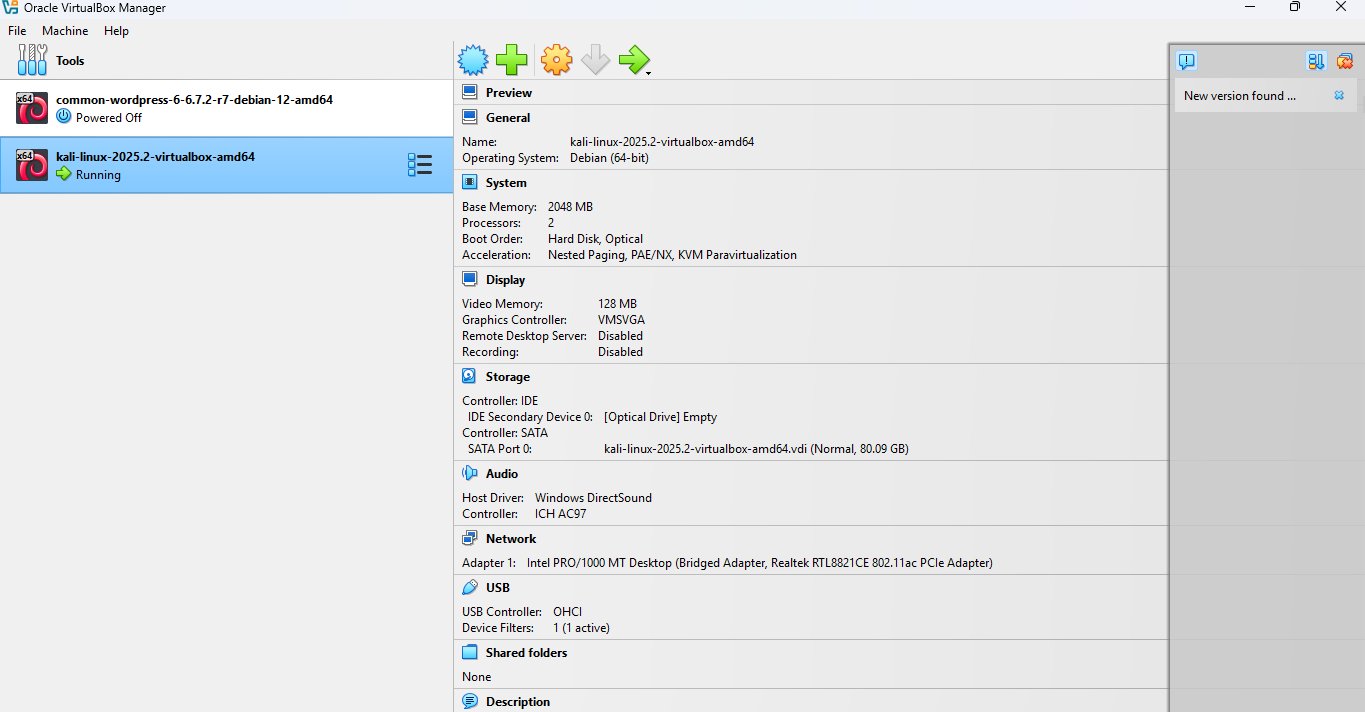
Step 1 — VirtualBox Manager: Two VMs Side by Side
Open Oracle VirtualBox Manager. You will see two VMs listed. The Kali Linux VM should show "Running" status. If not, select it and click Start.
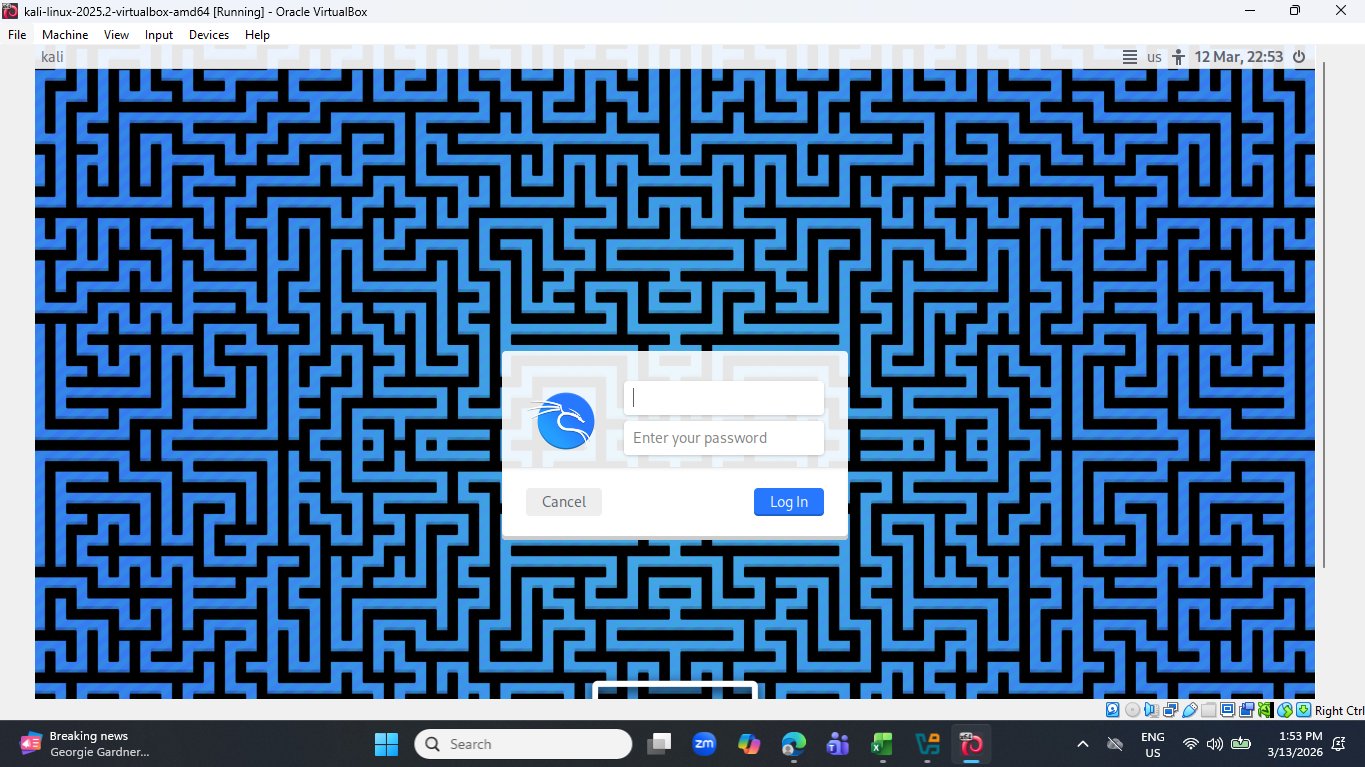
Step 2 — Logging into Kali Linux
When Kali boots, you will see a lock screen with its distinctive blue maze wallpaper. Enter the default credentials:
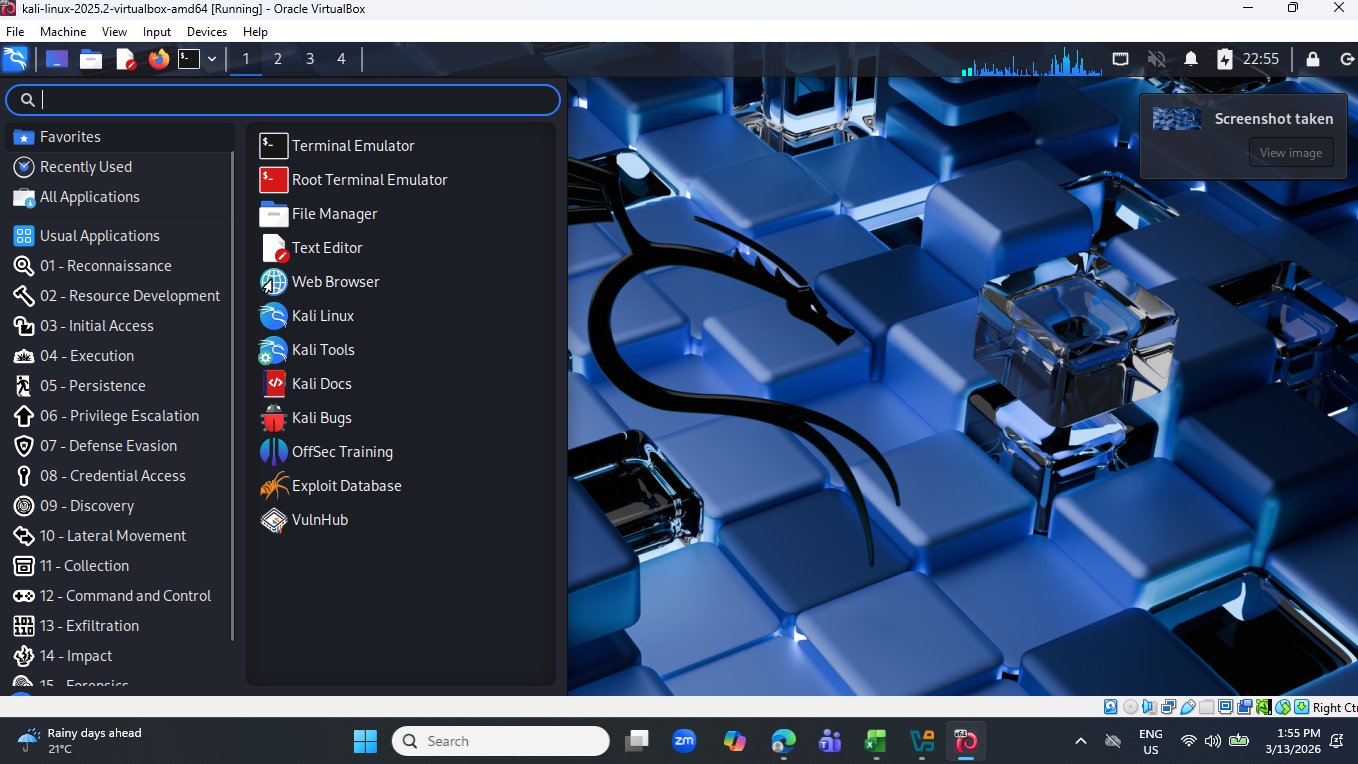
Step 3 — The Kali Linux Desktop & Tools Menu
After logging in, click the applications menu. Notice it is organised by MITRE ATT&CK phases — from Reconnaissance (01) to Forensics (15). This categorisation maps directly to real-world penetration testing workflows. For this lab, our work falls under 01 – Reconnaissance.
Setting Up the Target — Bitnami WordPress
Step 4 — Booting the WordPress VM
Go back to VirtualBox Manager and start the WordPress VM. When it boots to a terminal screen, the Bitnami welcome banner immediately provides valuable intelligence — just by being visible on the console:
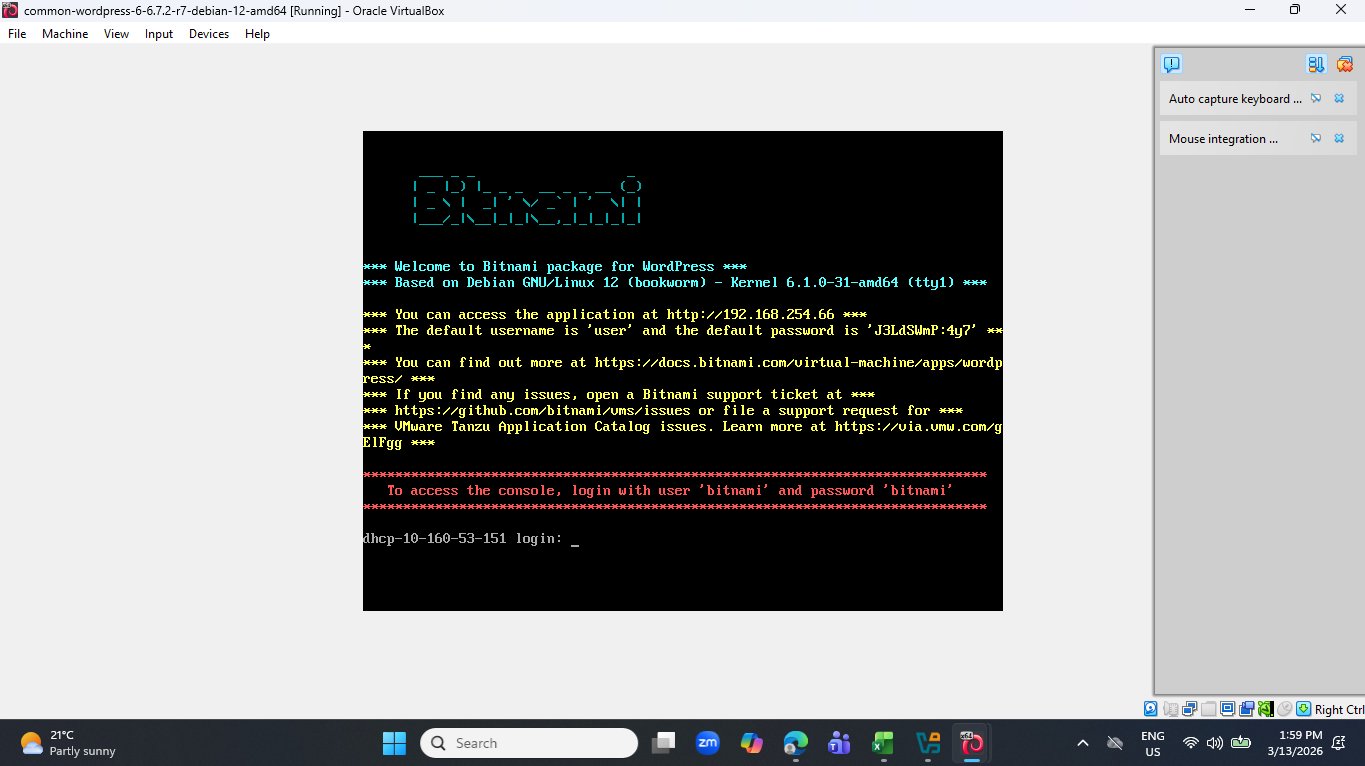
In a real penetration test, a boot screen exposing default credentials would be a Critical severity finding. Always change default passwords immediately after installation. The auto-generated password shown (J3LdSWmP:4y7) would be rotated on a production system.
Step 5 — Finding the WordPress Server IP Address
Log in to the Bitnami WordPress console at the terminal prompt:
Once logged in, run the following command to find the server's IP address on your network:
ip address
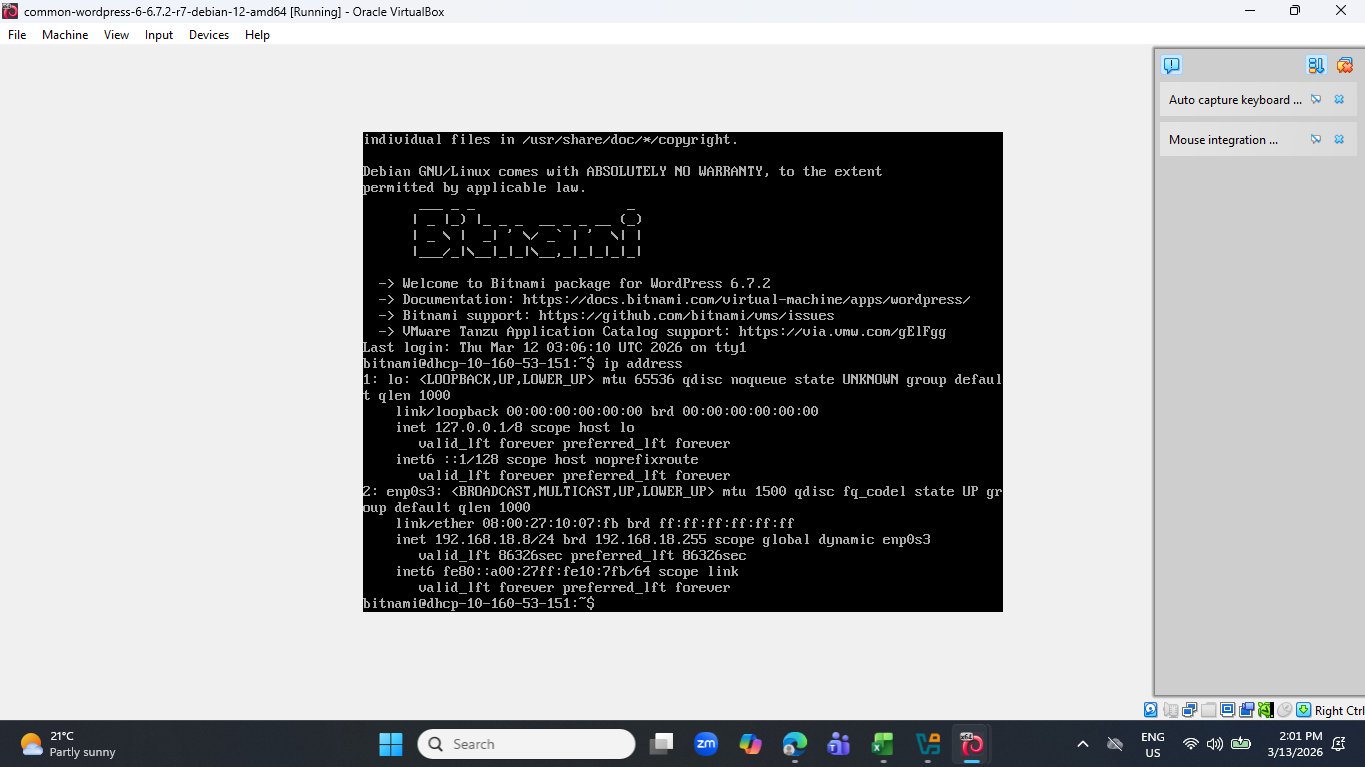
In the output, ignore lo (loopback). Look at enp0s3 — this is your real network interface. The IP address shown is 192.168.18.8 (yours may differ depending on your router's DHCP range).
Because VirtualBox is configured with a Bridged Adapter, the WordPress VM gets a real IP address on your Wi-Fi network — just like any other device. This means every phone, laptop, and tablet on your Wi-Fi can reach this WordPress site. This mirrors real-world network exposure.
Verifying the WordPress Website
Step 6 — Open the Website in a Browser
On any device connected to the same Wi-Fi (your Windows host, a phone, or within Kali), open a browser and navigate to:
http://192.168.18.8

The site is confirmed running. We can now see it is a standard WordPress installation — making it the perfect target for WPScan. Three quick observations a real attacker would note:
- → HTTP only — no SSL/TLS encryption
- → Default theme — Études theme unchanged from installation
- → No login lockout visible — ready to accept multiple requests
User Enumeration with WPScan
WPScan is a free, open-source WordPress security scanner included in Kali Linux. It can automatically discover WordPress versions, plugins, themes, and — critically for this lab — valid usernames.
Step 7 — Running the WPScan Command
Open a Terminal Emulator in Kali Linux and run:
wpscan --url http://192.168.18.8 -e u
Here is exactly what each part of this command does:
| Part | Meaning |
|---|---|
| wpscan | The WordPress security scanner tool (pre-installed in Kali) |
| --url http://192.168.18.8 | The target WordPress website URL to scan |
| -e | Enumerate flag — tells WPScan to find specific information |
| u | Enumerate type: u = users. WPScan will find all usernames. |
WPScan will probe the site using two strategies: passive detection (reading publicly available pages) and aggressive detection (actively probing the WordPress API, login form, and author ID system).
Analysing the WPScan Results
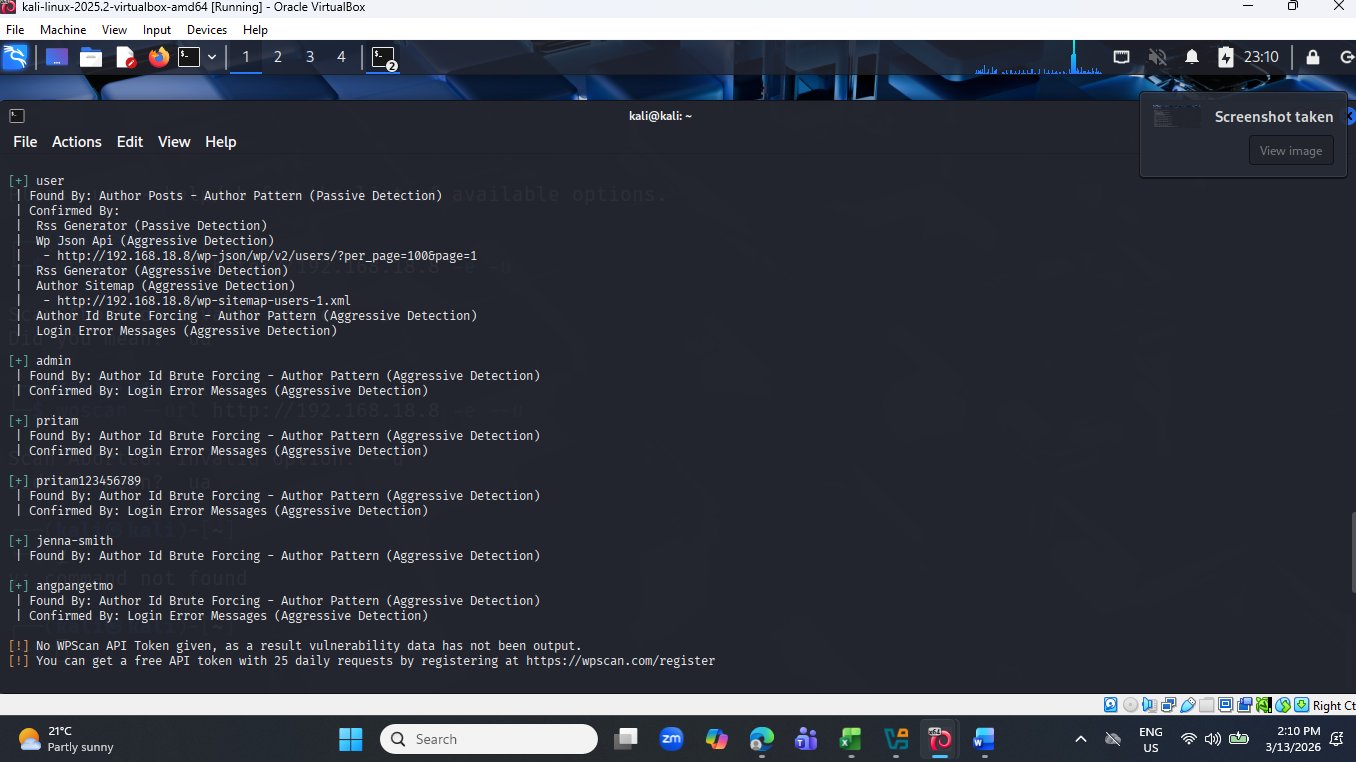
WPScan successfully discovered 6 valid user accounts without knowing any passwords. Here is a full breakdown:
| # | Username | Detection Method | Confirmed By |
|---|---|---|---|
| 1 | user | Passive — Author Posts Pattern | RSS Generator, WP JSON API, Author Sitemap, Login Error Messages |
| 2 | admin | Aggressive — Author ID Brute Forcing | Login Error Messages |
| 3 | pritam | Aggressive — Author ID Brute Forcing | Login Error Messages |
| 4 | pritam123456789 | Aggressive — Author ID Brute Forcing | Login Error Messages |
| 5 | jenna-smith | Aggressive — Author ID Brute Forcing | Author Pattern |
| 6 | angpangetmo | Aggressive — Author ID Brute Forcing | Login Error Messages |
How Each Detection Method Works
PASSIVE Author Posts — Author Pattern
WordPress creates author archive URLs like /author/username/. Simply visiting /?author=1 causes a redirect that reveals the username in the URL — no unusual activity required.
PASSIVE WP JSON API
The WordPress REST API endpoint /wp-json/wp/v2/users returns a JSON list of all users — including their usernames — completely unauthenticated by default. This is the most severe information disclosure.
AGGRESSIVE Author ID Brute Forcing
WPScan requests /?author=1, /?author=2, /?author=3 and so on. Each valid ID redirects to a URL containing the username. This maps numeric author IDs to real usernames.
AGGRESSIVE Login Error Messages
WordPress login returns different error messages for wrong username vs wrong password. By submitting a username with a fake password, WPScan can tell whether the username exists — confirming the discovery.
Defensive Measures
Now that we understand how the enumeration works, here are the specific steps a WordPress administrator should take to defend against it:
Fix 1 Disable the REST API Users Endpoint
Add this code to your theme's functions.php file or a custom plugin to block unauthenticated access to the users list:
// Disable the REST API user enumeration endpoint
add_filter('rest_endpoints', function($endpoints) {
  if (isset($endpoints['/wp/v2/users'])) {
    unset($endpoints['/wp/v2/users']);
  }
  return $endpoints;
});
Fix 2 Block Author Page Redirects
Use a security plugin or add a redirect rule to block /?author=N requests from being processed. This stops Author ID brute-forcing in its tracks.
Fix 3 Use Generic Login Error Messages
Change WordPress login errors from "Incorrect password for user X" to a generic "Login failed" message. This removes the last confirmation method WPScan uses. Security plugins like Wordfence handle this automatically.
Fix 4 Install a Security Plugin
Use Wordfence Security, All-In-One Security (AIOS), or Sucuri Security. These detect and block scanning activity, enforce login lockouts, and alert you to enumeration attempts in real time.
Fix 5 Strong Passwords + Two-Factor Authentication
Even if all usernames are exposed, strong unique passwords and 2FA make them useless to an attacker. Enable 2FA for all admin accounts — even if just one fix is implemented, make it this one.
Conclusion & Learning Outcomes
In this lab, we built a complete isolated penetration testing environment, confirmed network connectivity between attacker and target, and used WPScan to successfully enumerate 6 valid WordPress user accounts — all without knowing any passwords in advance.
This demonstrates a core cybersecurity principle: information leakage. WordPress, by default, was not designed with attacker enumeration in mind. Multiple public-facing features expose usernames that were never meant to be easily harvested.
After this lab, you can:
- Set up a safe, isolated penetration testing lab using Oracle VirtualBox
- Identify IP addresses on virtual machines using the
ip addresscommand - Explain what user enumeration is and why it is a security risk
- Use WPScan with the
-e uflag to enumerate WordPress usernames - Distinguish between passive and aggressive detection methods
- Implement at least 3 specific defences against WordPress user enumeration
- Identify the relevant MITRE ATT&CK tactic and technique for this attack
MITRE ATT&CK Mapping
/?author=N requests or mass REST API calls to /wp-json/wp/v2/usersNow that we have 6 valid usernames, in Lab 2 we will use WPScan's brute-force module with a password wordlist to attempt to crack the passwords for these accounts — and then explore what an attacker can do once they gain WordPress admin access.

Dr Pritam Gajkumar Shah
Dr. Pritam Gajkumar Shah is an Australian-based computer science academic and cybersecurity specialist with extensive experience in teaching, research, and curriculum development in information technology and cyber security. He holds a Ph.D. in Information Sciences and Engineering from the University of Canberra, where his research focused on elliptic curve cryptography for resource-constrained wireless sensor networks. Dr. Shah has taught a wide range of cybersecurity, cloud computing, digital forensics, and networking units across several Australian higher education institutions and has contributed to the development of numerous IT programs. He is the founder of CyberPritam, a global cybersecurity learning platform that has provided free practical training to thousands of international students, and AusJournal, an academic publishing initiative supporting research dissemination and technical education. His work focuses on practical, lab-oriented cybersecurity education, integrating tools such as Kali Linux, Wireshark, Python, and cloud security environments to prepare students for real-world security challenges.